
Transform your tracking approach with Funnelytics' "Journey Tracking" feature, focusing on monitoring individual visitors and their actions. Learn how to seamlessly connect traffic sources, page visits, and on/off-page actions to gain actionable insights into your visitors' journey.
In this brief video, you'll discover:
The significance of tracking individual visitors and their journey through traffic sources, page visits, and actions.
How Funnelytics uniquely captures conversions, on-page engagement, and off-page actions to create a comprehensive journey overview.
The simplicity of Funnelytics' tracking script installation, enabling you to connect data sources
How to utilize the drag-and-drop canvas to extract valuable insights from your customer touch-points
READY TO DIVE IN?
Head over the Funnelytics Platform to get started!
Detailed Tutorial
Action Tracking Setup
In order to put an action icon on the Funnelytics canvas, you will need to track the data in one of two ways. Please see the following articles for more details:
Option #1 (recommended) - Track actions using the Zapier integration
Option #2 (advanced) - Track actions using Google Tag Manager containers
Once you are tracking action data, you can then come into the Funnelytics canvas and configure action icons to represent a specific action using the tutorial below
---------------------
The attributes for an action icon include any of the custom parameters that you passed to Funnelytics for a given event.
For example, in our purchase actions, we're passing additional properties such as the name of the product, discount codes used, the page path the action occurred on, the name of the product purchased, the SKU, as well as any properties of the form submitted such as the name, email etc.
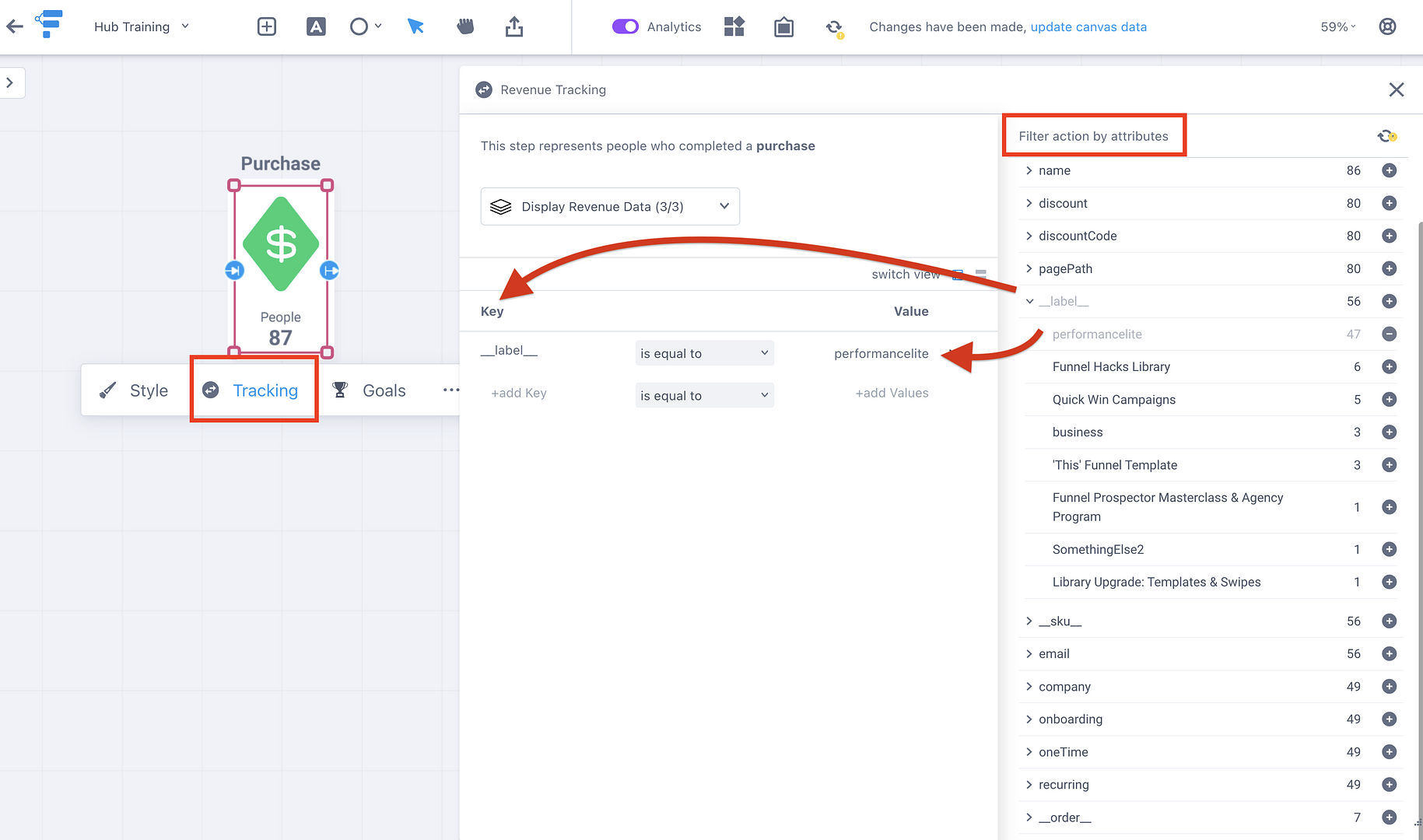
This allows you to take an action that is pretty general like a purchase icon, and add a filter to specify exactly which product you want that action to represent.
Clicking the "Tracking" button under the action will open up the attributes window.
From here you can add an attribute to the action and specify something more specific instead of in this instance all purchases.
Actions Attribute Explorer
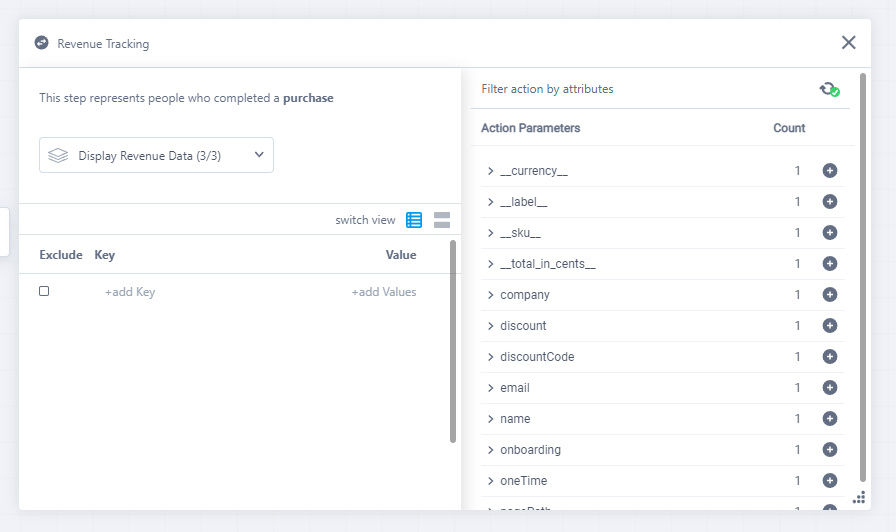
You can also explore attributes on custom and purchase actions to easily filter your data to exactly what you need.
Start by adding a custom action or a purchase action onto the canvas, then click on the tracking settings for that step, and you should see the actions attribute explorer window. This includes sentence-based view of attributes to more easily understand how you are filtering your data.
Logical Operators
Logical Operators give you more control over your canvas. You can leverage these to specify a segment of your traffic sources.
For actions, we’ve added:
Contains
Does not contain
Greater than / Less than
Greater or equal to
Less or equal to
Is equal to
Is not equal to
Tracking Sources
If you feel a little foggy about what UTMs are as a concept, please read our What Are UTM Parameters article in the Getting started guide.
Now with that out of the way, let's learn how to visualize your sources in Funnelytics.
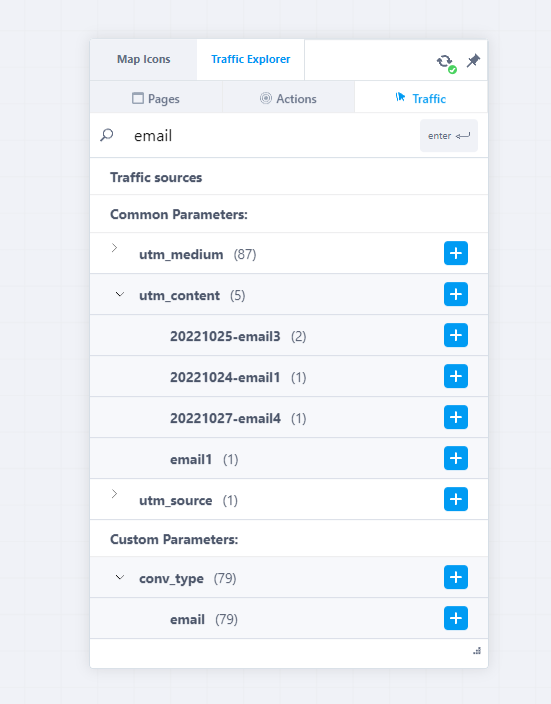
Search bar for sources
We added a search bar for the Traffic tab in the Step Explorer. This will help you better sort through your enormous list of UTMs to find the one you care about.
Attribute Explorer for Sources
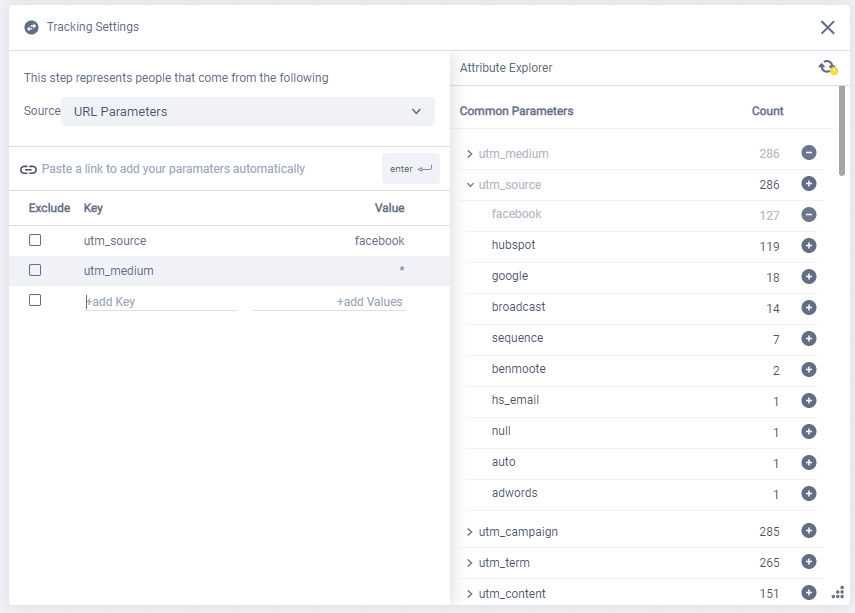
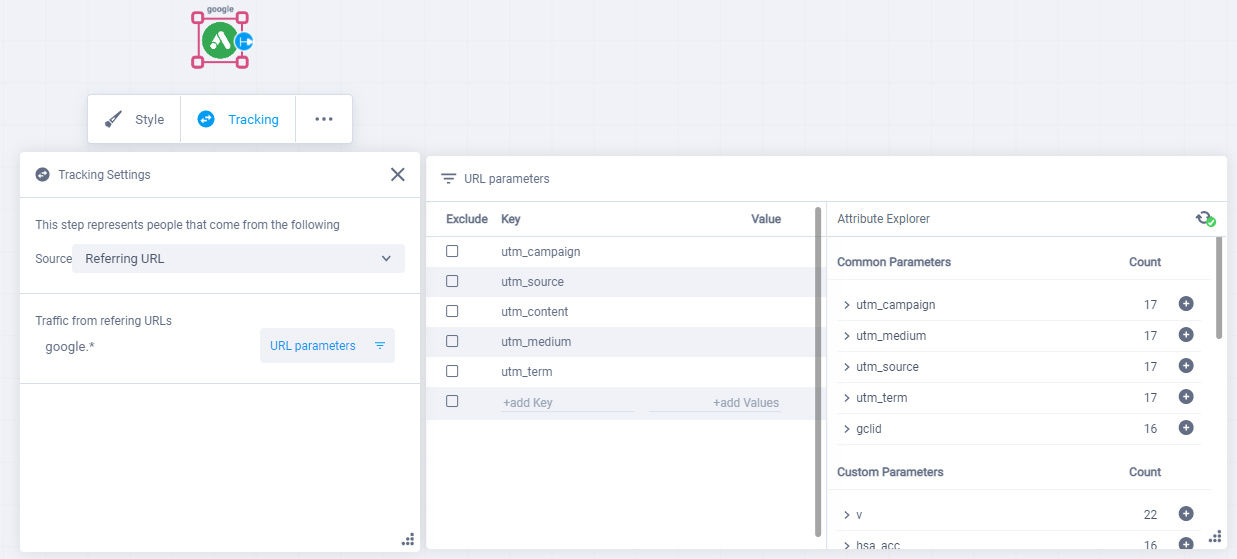
This feature allows you to view all the URL parameters that brought visitors to your website.
For example, to measure the impact of marketing assets (i.e. campaign, ad-set, or ad) users can add the parameters relevant to an ad, or multiple ads.
This will help in measuring overall engagement and conversion rate.
URL Parameters
You can add parameters from the right window and refresh analytics to see the data on the canvas. You can also enter a full URL, which will automatically parse its parameters.
Referring URL
This feature lets you know the list of all parameters associated with a specific source.
Logical Operators
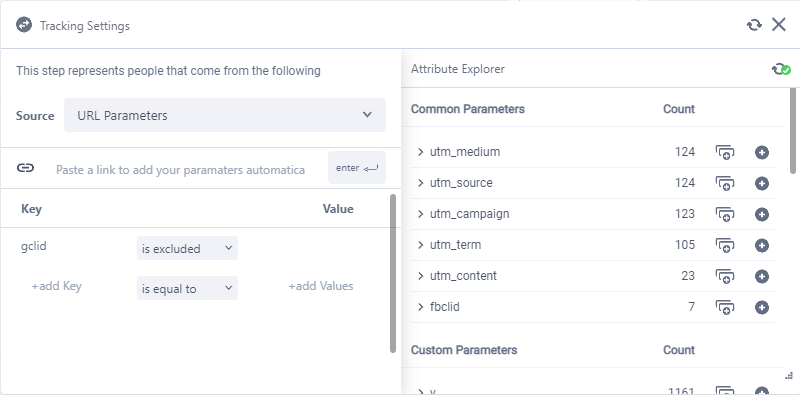
Logical Operators give you more control over your canvas. You can leverage these to specify a segment of your traffic sources.
For sources, we’ve added:
Is equal to
Is not equal to
Contains
Does not contain
For example exclude all the traffic with specific parameters (like gclid for Google traffic), as well as any UTM (or any other query parameter) of your choice.
Bulk Adding Source Elements
We noticed lots of users spending tons of time setting up their ads to track in Funnelytics. It was taking a lot of steps to complete, and was tedious and repetitive. To save you time during setup, we’ve created a bulk add feature which allows you to configure an ad set within a campaign, and then bulk add all the ads within it using a single click. This will not only add the icons, but name them automatically based on the ad set and the ad name, so they are mapped to your canvas instantly.

We also put together a Source Tracking template canvas for you.
Follow these easy steps to import the Playbook canvas inside your Funnelytics account.
Log In to your Funnelytics Account
Click on the New Canvas button
Choose a name (we suggest Traffic Analysis)
Click Create
Open this Canvas Link (IMPORTANT It is crucial that you will open this link AFTER you logged into your account)
Select All its content
Copy it
Paste it in the Canvas you created
Wait a couple of seconds for Auto-Save to kick in
Done
Of course this is just a template with some of the most popular traffic channels. But it is by no means exhaustive. So add your own and customize it to your liking.
Page settings are where you will be able to input information that is related to a specific page you have mapped out on the canvas.
By selecting a page on the canvas, a small toolbar will appear below the page with various icons (settings).
These icons represent (in order from left to right): Style Settings - Tracking Settings - More
Page style settings are covered in the Page Settings - Mapping Strategy section.
In Tracking Settings - You can specify the following:
URLs
Parameters
URLs:
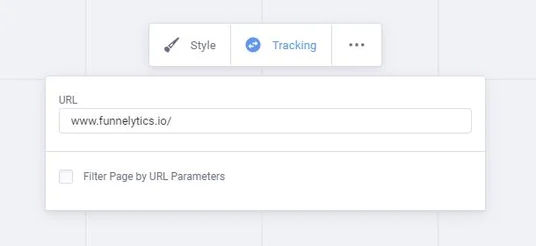
As in the Style Settings, the URL field allows you to enter the address of the page your wish to track.
If you happen to include any parameters in the URL, you will see those parameters are automatically applied to the "Filter Page by URL Parameters" list. If filtering parameters are applied, individuals tracked on that page will only be represented on the canvas if those parameters were present when they visited your page.
URLs cannot contain unsafe characters, such as < > # % { } | ^ ~ [ ] ( )
URLs cannot contain parameters. When a parameter is included in the URL, it will automatically be added to the parameters section of the page settings.
Parameters:
Parameters FILTER the page views on that page by the KEY and VALUE pair that you select. Learn more about parameters.
How to Track Them in Funnelytics:
Step 1
As a general rule, make sure that all your pages are mapped out and contain urls.
Commonly, parameters are passed from a sales page or an opt-in page to a thank you page. Let's look at how to track a ?Paid=Yes parameter on our thank you page.
Step 2
Click the Gear icon to open the Thank You page settings > Click on the Parameter Section > Click the "+" Button > Enter in the key and the value you want to look for in the URL.
In our example, the key is Paid and the value is Yes.
What we just told Funnelytics is to only track page views on the thank you page when the parameter criteria is met.
So, what would happen if a person landed on the thank you page but the URL contained no parameters?
Funnelytics would not show any data for that pageview because we told it to look for ?paid=yes in the URL and it wasn't there.
In Funnelytics you can add more than one parameter. This creates an AND argument. Meaning, the first AND the second values must be contained in the URL in order to track.
In the example below the URL would have to be http://example.com/thankyou?Paid=Yes&Member=Yes
In More - You will find the following:
Label
URL
Copy
Duplicate
Delete
Bring Forward
Bring to Front
Send Backward
Send to Back
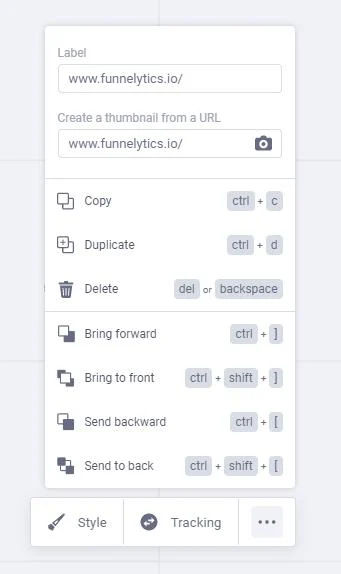
Note: In addition to being able to label your Page Icon, Enter a Tracking URL and Generate a Thumbnail, in the more tab, you will find the option to position your Page icon in relation to other elements that may appear on the Canvas.
Grouping and Wildcards
Wildcards in Funnelytics are represented as an asterisk (*) and stand in for unknown characters in a text value. They are handy for locating multiple items with similar, but not identical data.
Wildcards can also help with getting data based on a specified pattern match. For example, aggregating all pages under a nested site structure such as blogs.
Without a wildcard a collection of page urls might look like:
www.website.com/blog/name-of-blog-1
www.website.com/blog/name-of-blog-2
www.website.com/blog/name-of-blog-3
www.website.com/blog/name-of-blog-4
However, there are many cases where you may need to use the wildcard character (*) to track aggregated pages such as how many people visited all /blog pages.
In this instance you would use a wildcard like:
This is also useful if a section of the URL is dynamic (changes for every user). In this case you can simply add the asterisk * to the part of the URL that changes. The wildcard accounts for any variation instead of looking for an exact match.
For example, your thank you page or confirmation page may have an order-id number that changes for every order. Like this:
www.mysite.com/order-confirmation/123asd87y
Each order may have a different string at the end of the URL.
To account for this in Funnelytics, all you have to do is replace the dynamic portion with the *: www.mysite.com/order-confirmation/*
In addition, users can include a double wildcard ** to aggregate and capture data from that domain and all pages that follow.
If you have any questions or need assistance, feel free to reach out to our support team using the chat widget that you can find in the bottom right corner of the page