
Use various performance widgets to customize your canvas and reports. We explore the Trends widget, People widget, Country widget, and Goal widget
READY TO DIVE IN?
Head over the Funnelytics Platform to get started!
NOTE!
This feature requires Funnelytics tracking to be setup. Learn more here.
Detailed Tutorial
Intro to Widgets
Widgets are elements that you can drag onto the canvas to add context and insights to your reports.
It is the newest addition to the Funnelytics Canvas, they will let you display your metrics either on the canvas itself or in a report.
The kind of data displayed will depend on the type of Widget used.
How to Map a Widget
Click on the widget Icon on the top toolbar > Choose the widget type and click on it > Move it where you prefer on the canvas.
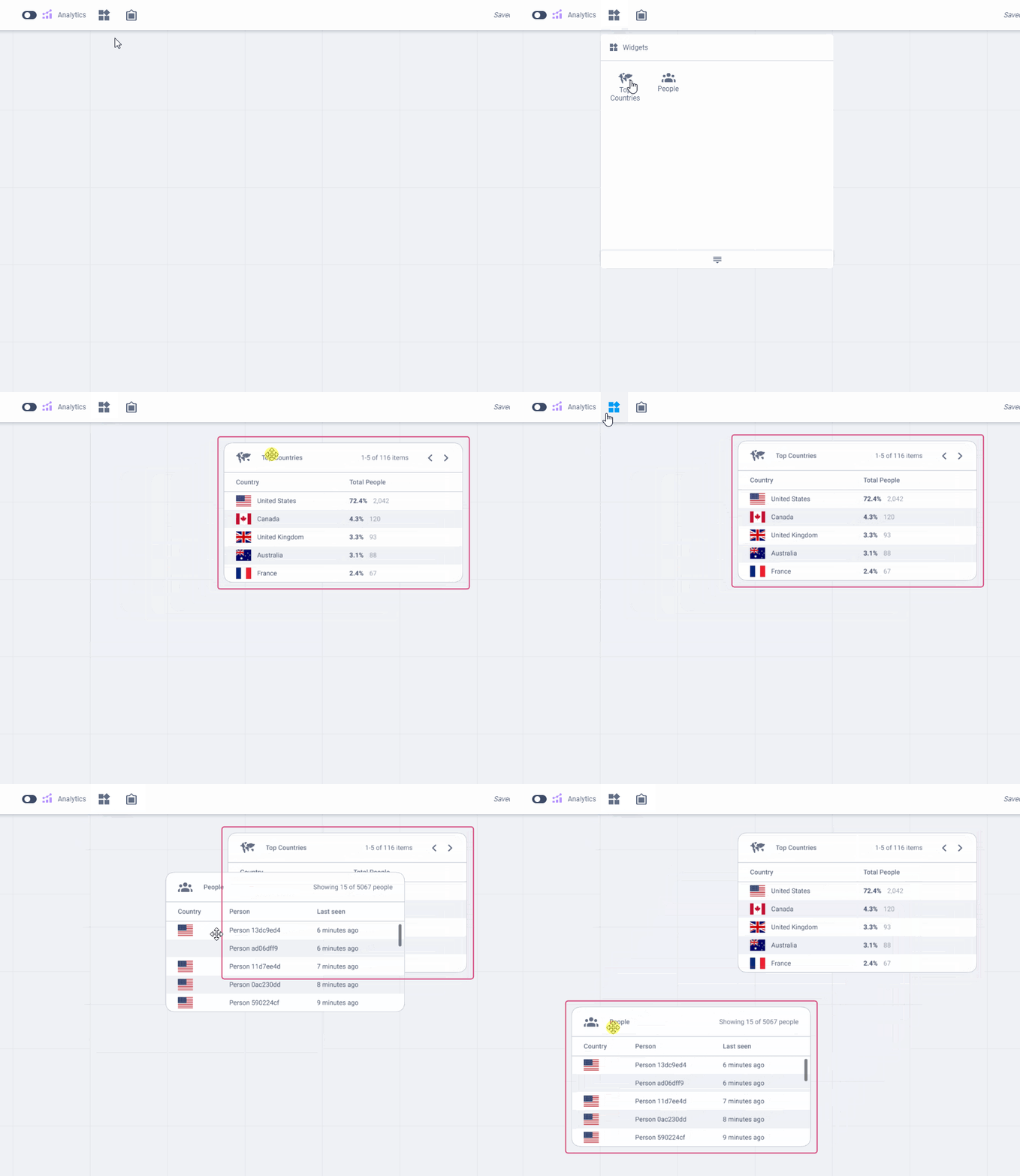
You can map more than one widget of the same type on a canvas.
How to Remove a mapped Widget
There are two ways of removing a widget.
Right-click onto the widget > Click Delete
Select it and press the Del or Backspace key on your keyboard
What type of Widgets are available?
There are 4 types of widgets available at the moment:
Top Countries
People
Goals
Trends
Countries Widget
The Countries widget will show you the main countries your users are connecting from to switch between the pages of the widget all that is needed is a click on the arrows in the top right corner of the widget itself.
People Widget
The People widget will show you the people that were tracked in the time frame selected.
By clicking on them a new window will pop up showing the customer's journey.
Several customer journeys can be opened and analyzed.
By clicking on a specific step of the customer journey a new window will pop up showing all the attributes tied to that element.
Trends Widget
The Trends widget is used to show progress and trends over time for a specific source, page or action. In this guide, we will walk you through the steps to make the most of the powerful trends widget.
Adding the Trends widget
Start by opening your Funnelytics canvas.
Click on the "Widgets" section on the left-hand sidebar.
Select "Trends" from the available widgets.
Once you add the Trends widget to your canvas, you're ready to begin analyzing patterns in your data.
You can have more than one Trends widget on any canvas, each with different elements.
Adding Steps to the Trends widget
Upon adding the Trends widget to your canvas, you'll notice that it doesn't display any data initially. You need to add steps to it. Here's how:
Click the "Add Step" button on the widget.
A list of elements already present on your canvas will appear.
You can use the search bar to filter elements or scroll through the list.
To add an element to the Trends widget, simply click on it. You can select elements from the list or directly from your canvas.
Keep in mind that you can add up to four elements to the Trends widget.
Loading Data
After you've added the desired elements to the widget, you'll need to load the data. Here's how:
Close the selection tab by clicking the "X" or anywhere outside the tab.
The widget will then start fetching the data. This may take a few moments.
The Trends widget will display data for the selected elements and analyze trends.
Data Presentation
The Trends widget provides a comprehensive view of your data. Here's what you'll find:
-
Data Breakdown: Data is presented in a table and a chart, showing a breakdown based on the selection in the dropdown at the top of the widget.
Daily (each data point represents a day)
3 Days (each data point represents a 3days interval)
Weekly (each data point represents a week)
Monthly (each data point represents a month)
Average: An average of the selected data is displayed.
Removing Elements: You can easily remove elements from the widget by clicking the trash icon.
Date Range Selection
The Trend Widget's date range selection corresponds with your canvas date range. It adapts to your selection, whether it's daily, weekly, or monthly (as explained in the point above). The widget's presentation changes accordingly.
Compare Mode
Additionally, you can use the Compare Mode to compare data from different date ranges. By selecting a second date range, or a different group of users using the people filters you can quickly identify changes and trends.
If you have any questions or need assistance, feel free to reach out to our support team using the chat widget that you can find in the bottom right corner of the page