
Revolutionize reporting with Funnelytics' "Reports" feature, redefining data presentation through dynamic diagrams and flow visuals that actually tell a story, offering actionable insights for improved results and engagement.
In this brief video, you'll discover:
Replace traditional charts with customizable slides adorned with icons and images for visually appealing reports.
Dive into contribution analysis for tracking marketing performance, leads, customers, and revenue.
Add insights and actions to your reports, making them more than just data but a guide to better results.
READY TO DIVE IN?
Head over the Funnelytics Platform to get started!
NOTE!
This feature requires Funnelytics tracking to be setup. Learn more here.
Detailed Tutorial
Executive Reports
Executive Reports are high level overviews of your customer acquisition journey that focus on the macro picture.
Designed to monitor the overarching performance of your teams customer acquisition efforts in order to understand progress and quickly identify leverage points to help acquire more customers.
Think of this report as your Key Results for your customer acquisition engine.
They are comprised of your Traffic channels, the Key Conversion Actions that drive growth, and connecting these with the "skip in between" step lines.
The aim is to report in a very visual way how channels impact your leads, your leads to sales opportunities, and your sales opportunities to new customers
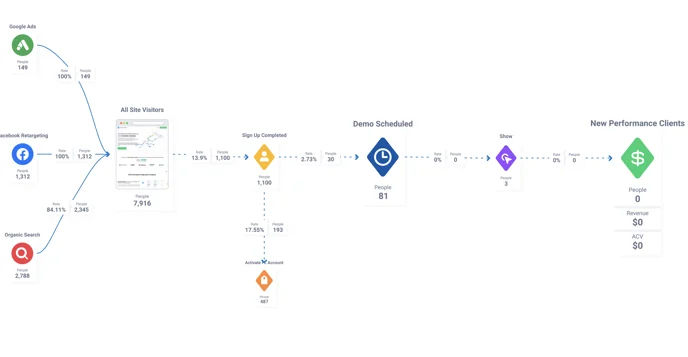
This an example Executive Report to get a very quick glance of traffic channels, site visits, new sign ups, demo requests, demos attended, and new customers
Contribution Impact Reports
Impact Reports are strategy breakdowns of how one particular touch point in your customer journey impacts another touchpoint, typically a form submission or a purchase.
It's designed to monitor the specific performance of your teams marketing efforts in order to clarify specifically what's working to generate more customers, revenue and profits for your business.
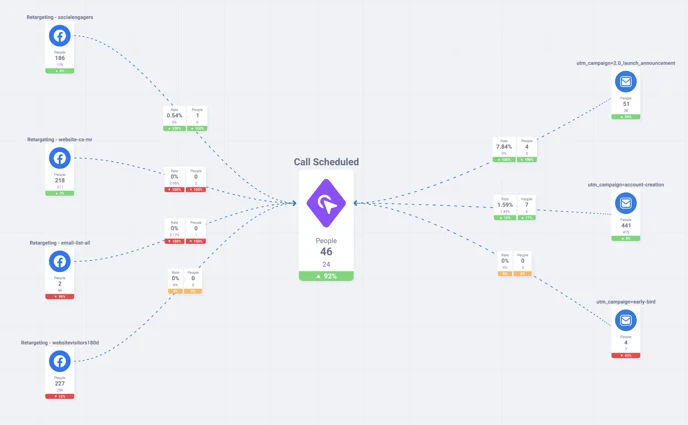
This is an example Contribution Report of "How Ads and Emails impact Calls Scheduled"... We've added a with a week-over-week comparison filter on to quickly see a red, yellow and green signal if we've improved week-over-week
How To Build Reports
There are two key methods to building reports in Funnelytics:
Approach it from a strategy standpoint, where you map what you'd like to in the report, set up tracking and then display the data on top of your map.
Approach it from a data standpoint, where you use Step Explorer to look at your data, map what you want to see, and then continue to map forwards or backwards to create your report.
Below - we have built a executive report step by step (following method 1, mentioned above)
Define The Question
Executive Reports: Are typically defined by the company's Director/Executives, Owner/Founder. The focus exercise is to ask yourself what are all the "key conversion actions" that a customer must take to become a customer.
Examples include:
What are all the traffic sources that people come from?
What are the main forms that people go through to become a lead?
What happens after they become a lead to move into the sales motion... do they attend a webinar, a call, go to a sales page?
... and finally they become a customer.
Contribution Reports: Are typically determined by the channel manager (such as email, Facebook, Google Ads etc.) and focus the individual components of campaign performance.
Examples include:
Which emails within a specific campaign generate the most purchases?
Which Facebook ad within an ad set is generating the most lead magnet opt ins?
Which Google Keywords generate the most Qualified Booked Appointments?
Create a Canvas
When you first log in, you'll be taken to the Funnelytics Dashboard - you can find tons of settings that you can change on there - but for now, you'll want to click New Canvas!
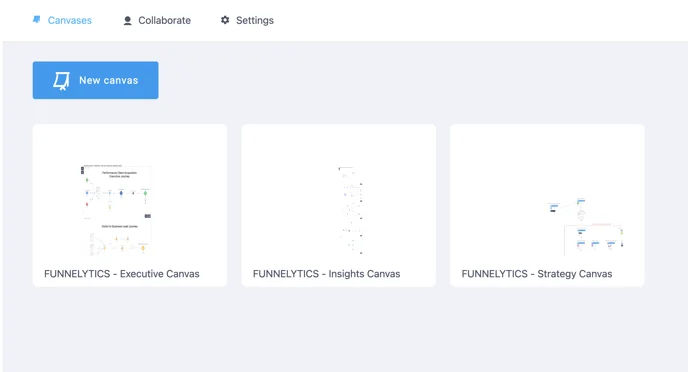
Assign a name, and click Create.
Add Icons
On the top sidebar, you will see a '+' icon. Click on the icon to open up the Page, Action, Traffic, or Misc icons. Also accessible by right-clicking or double-clicking on the Canvas.
Using the mapping tool, you'll want to map whatever you want to see in your report
Add Tracking to your Traffic, Pages and Actions.
For detailed instructions on how to set up tracking, refer to these categories in our Help Desk
Tracking Pages
Tracking Sources
Tracking Actions
Make Sure You Have The Right Connection Lines
Dotted lines in Funnelytics represent "ignore in between steps". In other words, you are asking Funnelytics to show you all the people who did the step on the left side of the line AND THEN did the thing that the line is connected to, however I want to ignore whatever they may have done in between those two steps. As long as they did those two things within the timerange selected, it doesn't matter if they did other things in between.
This is the main difference between dotted and solid lines. The solid lines means that a person did one thing, and the DIRECT NEXT THING they did is whatever the step connected.
To change the setting, click on the line, click on connection type, and choose the line type. You can also multiple select lines and change them all at once by multi-selecting on the canvas.
Add Reporting Frames to Your Canvas
Funnelytics uses Frames to create the report. In short, whatever you have inside of a Report Frame is what you will see in the report. Think of each Frame as a page in your report.
To add your report frames, do the following:
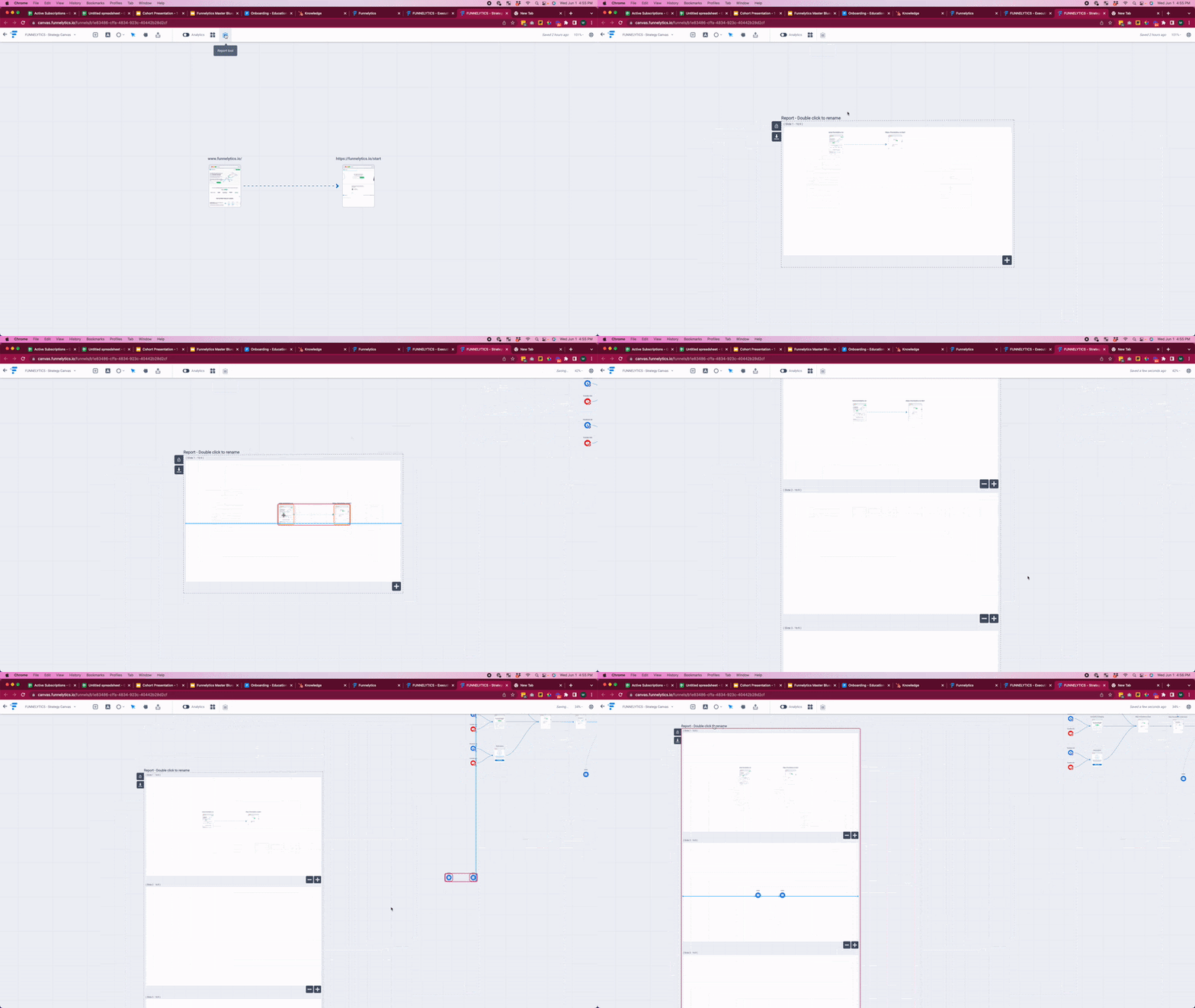
Click on the Report tool in the top tool bar.
Click anywhere on the canvas to add your first Frame
Simply drag and drop any step into your Frame and you will see the icons turn into an orange border, which indicates that these icons are now attached to the report.
Add or Remove Frames to your report by clicking the + or - sign at the bottom right of a Frame.
You can move a report and all it's contents by simply dragging the title around the canvas
You can change the title of a report by double-clicking on the title
You can also lock a report in place, by clicking on the Lock icon in the top left of the report.
Export and Send Your Report
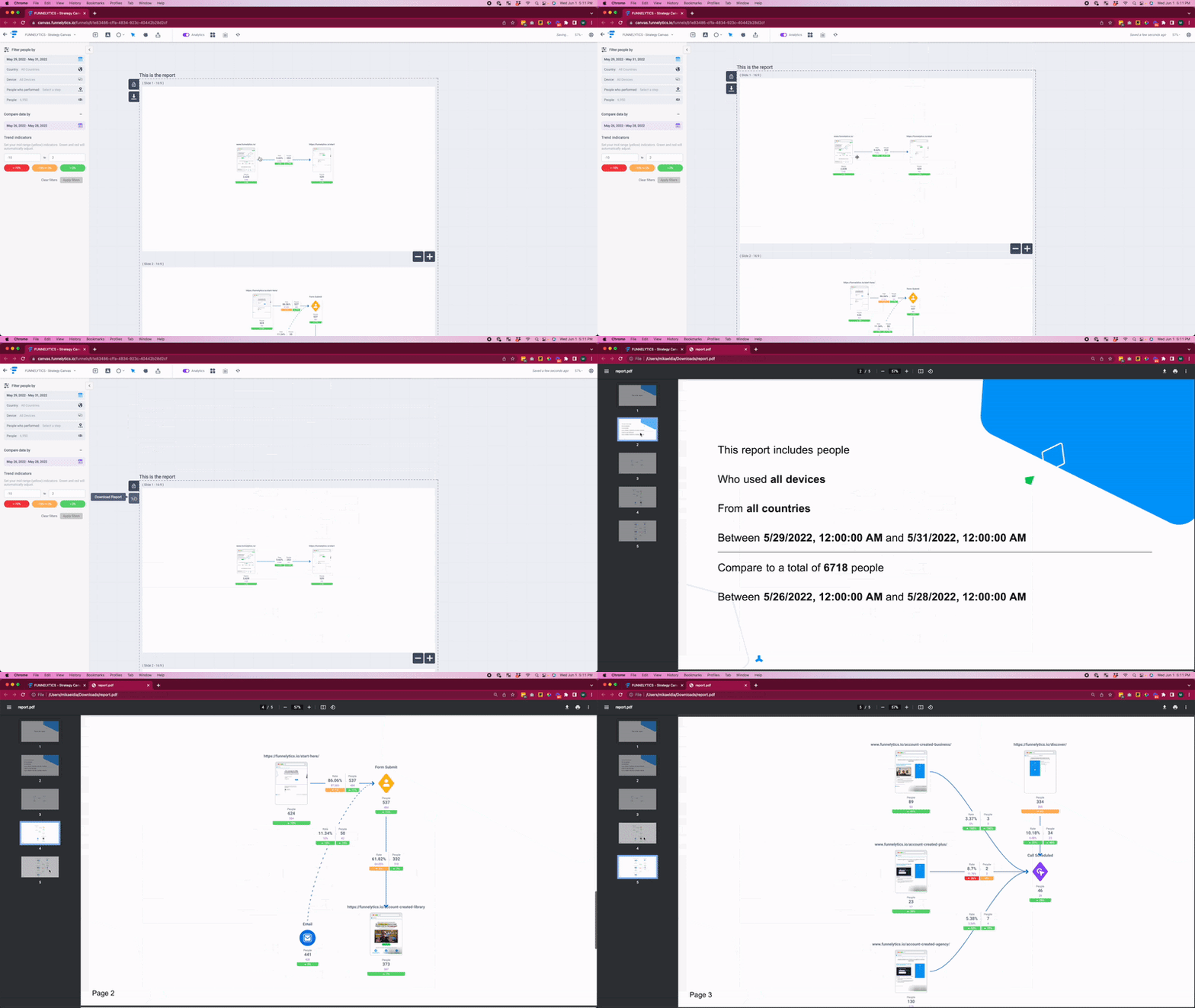
Once you've completed setting up your frames and the content, you can simply turn on analytics, choose the date range that you want, add base filters and comparison filters (optional), and click on the Download icon in the top left of the report.
Report styling
Tired of having only white backgrounds in your reports? With the latest addition to the Report tool, the Style Slide functionality you can select a color for the background, as well as overlay an image on top of it.
Here's a quick video showcasing how this feature works:
If you have any questions or need assistance, feel free to reach out to our support team using the chat widget that you can find in the bottom right corner of the page