
Funnelytics is very powerful, however for most people this is the first time they’ve seen their data displayed on a canvas. In this article, we walk you through how to look at data in Funnelytics and the various modes we offer to read and interpret your data.
READY TO DIVE IN?
Head over the Funnelytics Platform to get started!
NOTE!
This feature requires Funnelytics tracking to be setup. Learn more here.
Detailed Tutorial
Funnelytics is a people centric data model. This means the number under every source, page and action on the canvas represents a unique individual who has engaged with that step through your customer journey.
Numbers are used to understand and visualize how unique people flow through your pages, traffic sources, ads, etc, across your marketing funnels.
Once in analyze mode, you can view the people and referrers on a given page to learn and understand better what is happening on that page specifically. The numbers on the line represent the conversion rate between two assets mapped on the canvas.
Check out the video below to help you read your data and understand your numbers.
Direct vs In-Direct Conversion Steps
This is a really cool feature that allows you to visualize the conversion rates between two steps without having to map every single step out that occurs between the two steps.
As a quick example, we may want to visualize the number of people that came from Google Organic and then later registered for an account.
You could map out every single step that goes from Google Organic to register:
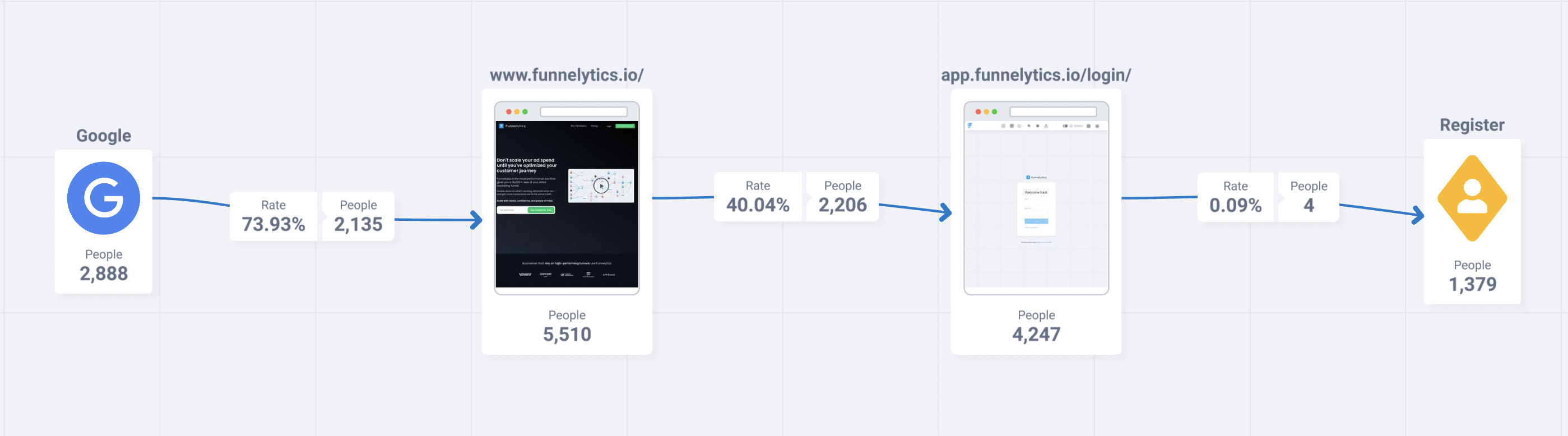
Not too many steps in this case, but still doesn't show us how many people came from Google and then converted without a focus
Or we could get the percentage easily by simply mapping the traffic source icon directly to the action icon.
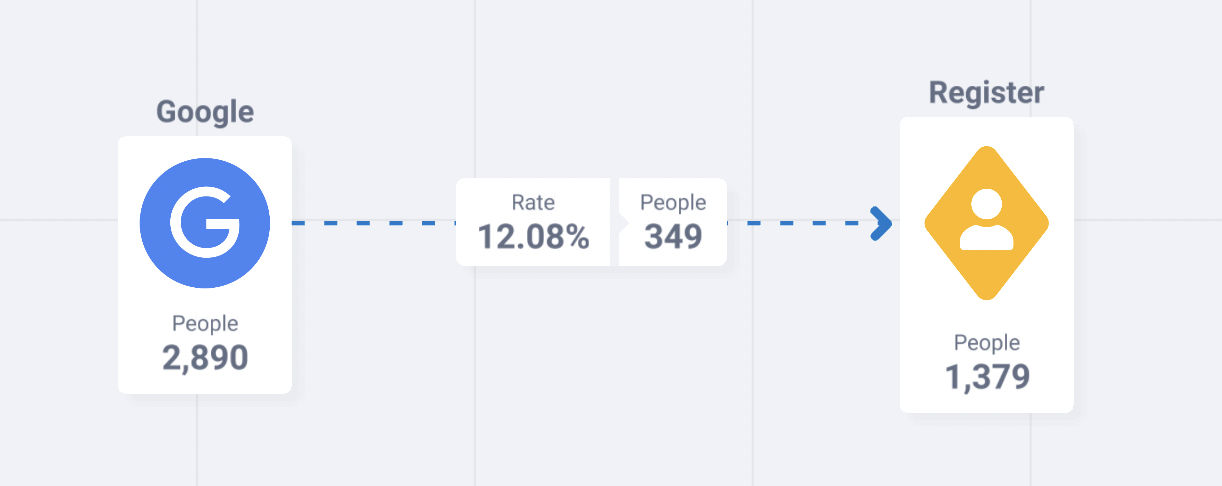
You can see that now the line has changed to become a dashed line signifying that it's going to do a direct conversion rate. Immediately we can see the number of users that came from Google Organic and then later registered for an account.
Change a Normal Line to Indirect (Ignore In-Between Steps) Line
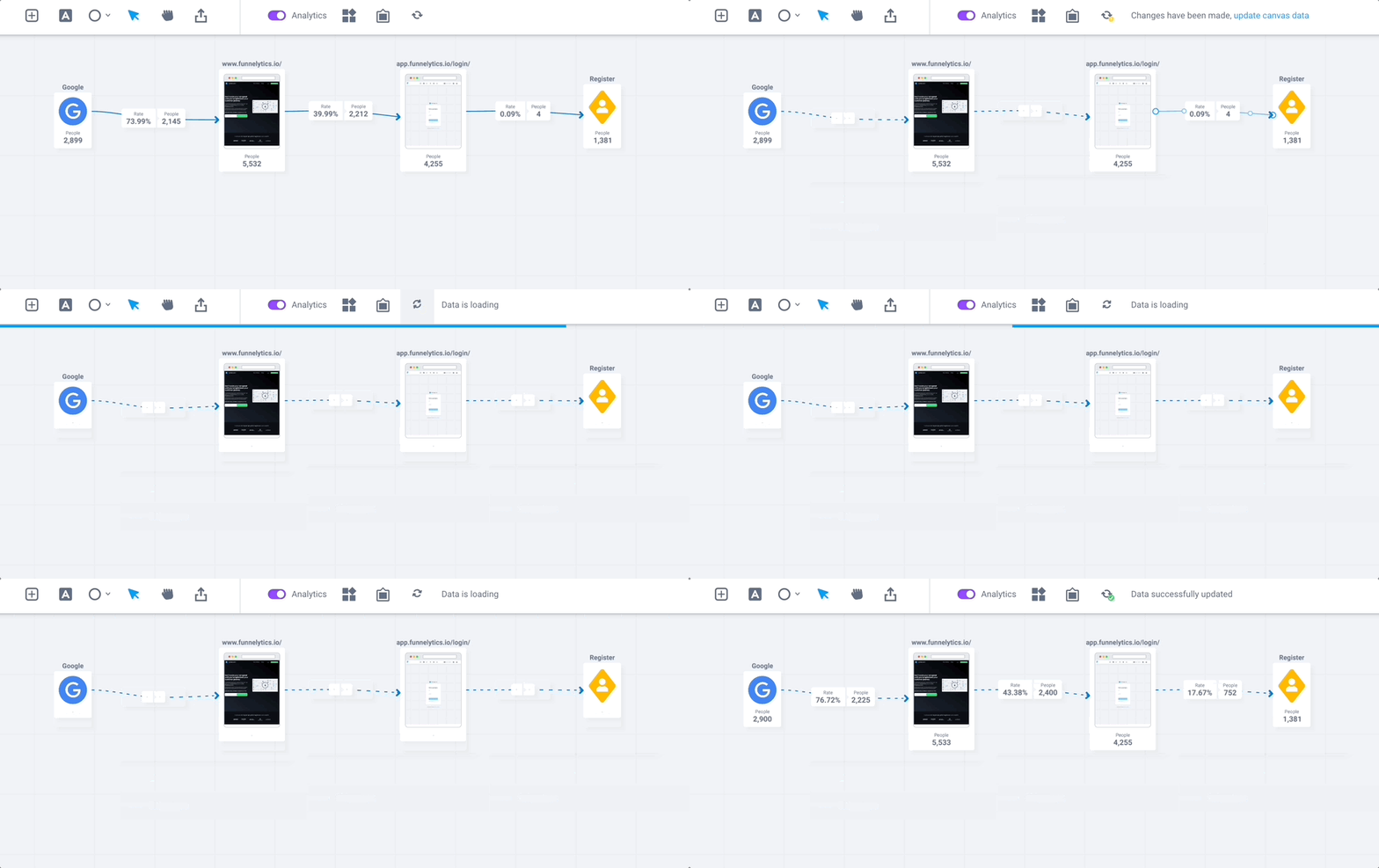
To change the line type from a direct line to an ignore in-between steps line, click on line settings and then the line icon.
Flow Mode
Flow mode simplifies data analysis and helps you understand and explain to others complex data flows.
Understanding Flow Visualization
Flow visualization is a tool that simplifies data analysis in your Funnelytics account. It's designed to make complex data flows easy to understand and explain to others.
Here are the steps to get started with the Flow Layer:
Access Your Funnel Analytics Account (make sure you have data in your Funnelytics workspace)
Open the Canvas
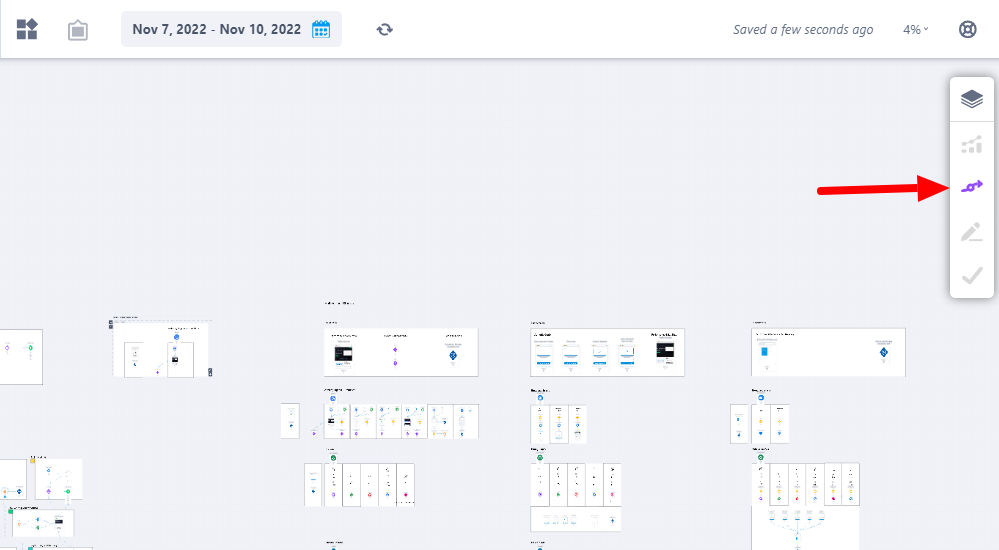
Turn on the Flow Layer by clicking on the icon in the top right
Streamlined Insights
With the Flow Layer enabled, you can understand substantial user flows without focusing on the numbers. It's a powerful tool for quick data comprehension.
If you need more context, you can toggle the numbers back on to provide additional insights.
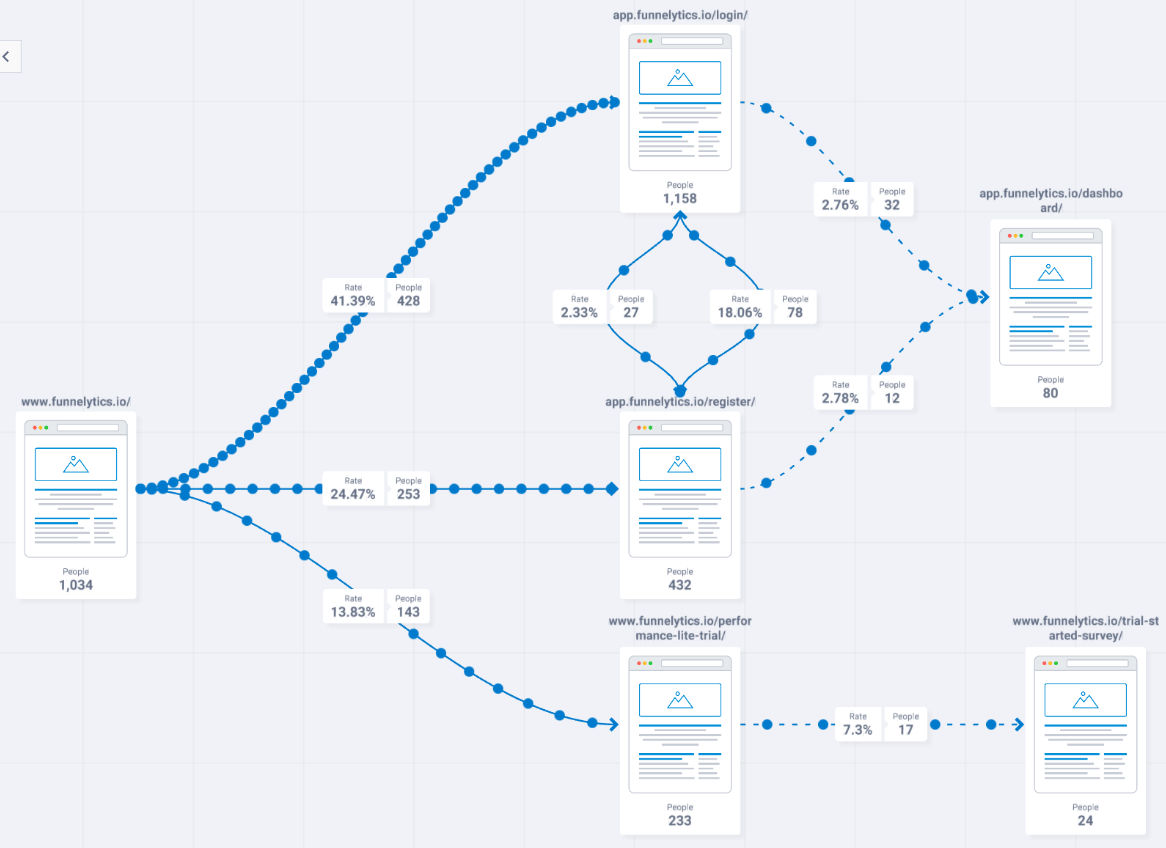
Uncertain why your numbers don’t seem to match?
If you questioned the data on your canvas for this you can rest assured that nothing was wrong.
It's just a matter of point of view and how we think of the customer flow that sometimes tricks our brains, hiding the solution 😀
Sometimes when we connect two elements we expect the people only flowing in the direction we planned (and mapped), but the users move more than we think.
As I show in the example below we usually tend of thinking that filtering by the element on the starting side of the connection will automatically turn the one at the end of the connection with a number that matches the line.
That's not necessary true, because, in some cases, the user will not follow that path, or at least not only that!
I explain it in details in the video below.
Funnel Mode
But what is Funnel Mode?
Funnel Mode lets you visualize just the people that went through the elements you connected on the canvas without the need to filter each element.
It does an enormous amount of calculations for you without your need to filter for each element. It’s just a simple switch and the way you see data will simply change.
NOTE: Given the huge amount of calculation needed for Funnel mode it might be a little less performant than the standard way of looking at Funnelytics data.
If you have any questions or need assistance, feel free to reach out to our support team using the chat widget that you can find in the bottom right corner of the page